| ||||
| ||||
| ||||
| ||||
| ||||
| ||||
|

Custom Search
Saturday, May 8, 2010


Wednesday, April 28, 2010
How to create Windows XP Live CD, complete with preinstalled programs
1. Bart PEbuilder
2. A CD burner like Nero
3. A bootable Windows XP CD and
4. Some pebuilder plugins to customize the CD.
Step 1: Download PeBuilder from here and install it. Make sure you have enough free space on the drive where you install the program. After you have finished adding all programs it will create an ISO to be burned into a disk. The size of the ISO will depend upon how many programs you add to your live CD. I would recommend atleast 700MB of free space.
Step 2: You may want to set a wallpaper that will appear on the desktop when you boot the CD. For this open the folder where you have installed PEbuilder and replace the file bartpe.bmp with the wallpaper of your choice.
Step 3: Download XPE plugin from here (direct download link). It's the GUI shell of the XP Live CD that will create the XP start button and taskbar. You are free to download as many plugin (applications) you want. Currently there are more than 500 applications to choose from. Both freewares and commercial applications are available. Antivirus programs like Kaspersky, NOD32, Avast; burning program Nero; media players like VLC; OpenOffice, Foxit PDF reader, Acrobat Reader etc are available.
Pebuilder plugins repository
More Plugins here
Step 4: After you have finished downloading all your favourite programs, open PEbuider and specify the source path to the Windows XP installation bootable CD. You can copy the CD to your hard disk and point the source to the copied file.

Step 5: Click Plugins and add all the plugins you have downloaded. Since we have added XPE, disable nu2shell and the startup group from the list of plugins.
Step 6: Specify the ISO image file and click Build. The program will integrate the plugins and create an ISO image.
Step7: Burn the image into a disk using any burning software and your live CD is ready.

The Live CD Desktop

Running Abiword

Running VLC Media Player
Source: Digit magazine Nov 2007 issue.


Sunday, April 11, 2010
How To Become A Hacker....?

To follow the path:
" look to the master,
follow the master,
walk with the master,
see through the master,
become the master."
(to) follow the below link to read about it....
http://www.catb.org/~esr/faqs/hacker-howto.html#skills4
Humble request...
"PLEASE be a ETHICAL HACKER...."
Sunday, April 4, 2010
Who is 360TR ?

Cansız Hayal Tasarım and www.360tr.com, as a multimedia group, is a special team which has a Virtual Reality (VR) panoramic style that allows you to visit all cities, museums, historical places of Turkey on internet as virtually. www.360tr.com group has been realized many worldwide projects with the Ministry of Arts and Culture and UNESCO.
It has visitors from all over the World, particularly United States of America, Switzerland, France, Germany, Israel, Austria, Sweden, Russia, Spain, Japan, Arab Emirates, Greece, Iran, China, Azerbaijan, Canada, UAE, Pakistan and Australia.
- Hagia Sophia
- Topkapi Palace
- Topkapi Palace - Secred Relics
- Anitkabir - Memorial Tomb
- Canakkale Martydrom
- Dolmabahce Palace
- Antalya Museum
- Museum of Anatolian Civilizations
- Zeugma Museum
- Burdur Museum
- Mawlana Museum
- Sarikamis Martydrom
- Bodrum Underwater Archaelogy Museum
- Tcg Gayret War Ship
- Hızır Reis Submarine
Check this out : http://www.360tr.com/
Monday, March 29, 2010
Nexus One Android Smartphone Review

Now I know how the Bachelor and Bachelorette feel because I’m in love with two… smartphones. I’ve been using an iPhone on and off (on since last July when I purchased the 3GS) since it was originally released and our relationship has been sort of love hate. Love because of the apps. Hate because it does not have dedicated call send and end buttons. I haven’t been exclusive to the iPhone though. I am guilty of flirting with other phones, but they meant nothing to me and I continue to come back to the iPhone after a brief tryst. The G1hit my radar over a year ago and although I found it interesting, it didn’t go much farther than that. But things have drastically changed in the past year. As Apple continues to alienate users, Android has been gaining momentum. I thought it was high time I gave Android another try to see if it could win my heart from the iPhone. I purchased the Nexus One and now I find that I’m torn between two phones.
Hardware Specs
Processor: Qualcomm QSD 8250 1 GHz
Operating System: Android Mobile Technology Platform 2.1 (Eclair)
Memory: 512MB Flash, 512MB RAM, 4GB Micro SD Card (Expandable to 32 GB)
Cellular: UMTS Band 1/4/8 (2100/AWS/900), HSDPA 7.2Mbps, HSUPA 2Mbps, GSM/EDGE (850, 900, 1800, 1900 MHz)
Wireless: Wi-Fi (802.11b/g)
Bluetooth: 2.1 + EDR, A2DP stereo Bluetooth
Display: 3.7-inch (diagonal) widescreen WVGA AMOLED touchscreen, 800 x 480 pixels, 100,000:1 typical contrast ratio
Camera: 5 megapixels, Autofocus from 6cm to infinity, 2X digital zoom, LED flash, Video captured at 720×480 pixels at 20 frames per second or higher, depending on lighting conditions
Dimensions: 119mm x 59.8mm x 11.5mm
Weight: 130 grams w/battery, 100g w/o battery
Battery: 1400 mAH battery, Charges at 480mA from USB, at 980mA from supplied charger
Talk time
Up to 10 hours on 2G
Up to 7 hours on 3G
Standby time
Up to 290 hours on 2G
Up to 250 hours on 3G
Internet use
Up to 5 hours on 3G
Up to 6.5 hours on Wi-Fi
Video playback
Up to 7 hours
Audio playback
Up to 20 hours
Operating System: Android Mobile Technology Platform 2.1 (Eclair)
Memory: 512MB Flash, 512MB RAM, 4GB Micro SD Card (Expandable to 32 GB)
Cellular: UMTS Band 1/4/8 (2100/AWS/900), HSDPA 7.2Mbps, HSUPA 2Mbps, GSM/EDGE (850, 900, 1800, 1900 MHz)
Wireless: Wi-Fi (802.11b/g)
Bluetooth: 2.1 + EDR, A2DP stereo Bluetooth
Display: 3.7-inch (diagonal) widescreen WVGA AMOLED touchscreen, 800 x 480 pixels, 100,000:1 typical contrast ratio
Camera: 5 megapixels, Autofocus from 6cm to infinity, 2X digital zoom, LED flash, Video captured at 720×480 pixels at 20 frames per second or higher, depending on lighting conditions
Dimensions: 119mm x 59.8mm x 11.5mm
Weight: 130 grams w/battery, 100g w/o battery
Battery: 1400 mAH battery, Charges at 480mA from USB, at 980mA from supplied charger
Talk time
Up to 10 hours on 2G
Up to 7 hours on 3G
Standby time
Up to 290 hours on 2G
Up to 250 hours on 3G
Internet use
Up to 5 hours on 3G
Up to 6.5 hours on Wi-Fi
Video playback
Up to 7 hours
Audio playback
Up to 20 hours

Package Contents
Nexus One smartphone
AC adapter
USB cable
Earbuds
Extra earbud covers
Quick Start guide
AC adapter
USB cable
Earbuds
Extra earbud covers
Quick Start guide
The Hardware
Note: Many of the images in this review can be clicked to see a larger version.
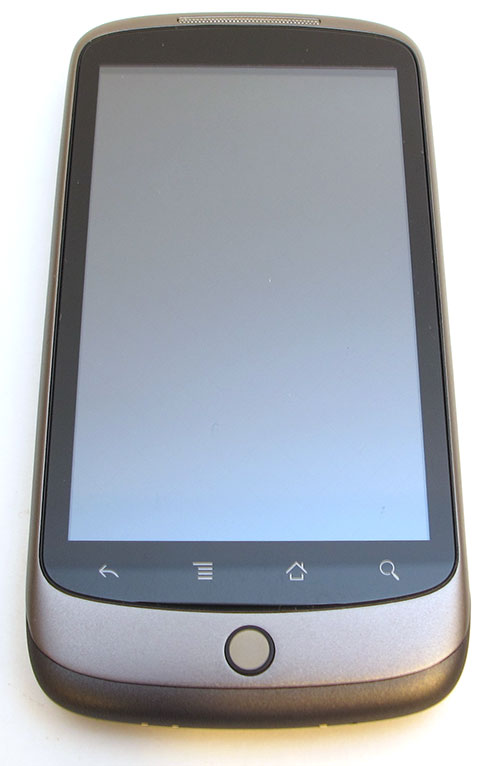
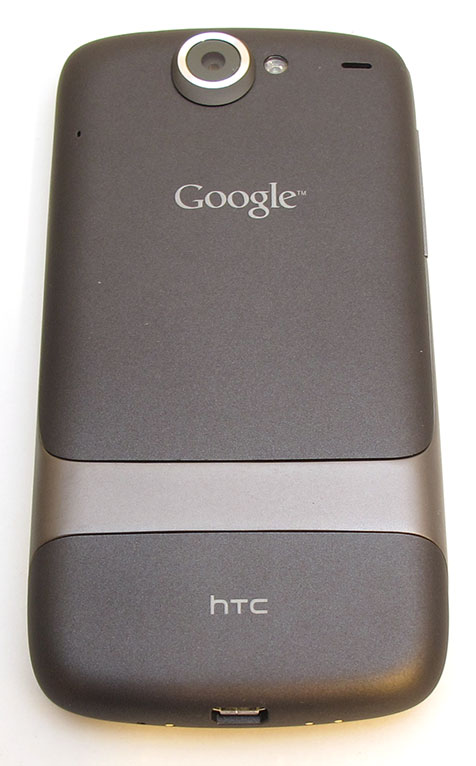
The Nexus One is much sleeker than the G1 ever dreamed of being. The metal frame has a Titanium finish that’s very stylish. The sides of the Nexus are rounded and smooth. The phone is very comfortable in hand and has a nice heft to it. It’s very solid and had no problems passing the Gadgeteer squeeze test. No creaks, cracks, or flexing was noticed.
The majority of the phone’s front is taken up by the gorgeous 3.7″ touch display. Below the display is a strip of backlit touch buttons and below them is the combination trackball, status LED.

Flip the phone over and you’ll see the 5mp camera lens and LED flash. The cover slides off to reveal the battery, microSD and SIM card slots.
The battery cover is plastic with a soft rubberized coating that keeps the phone from feeling slippery in your hand.
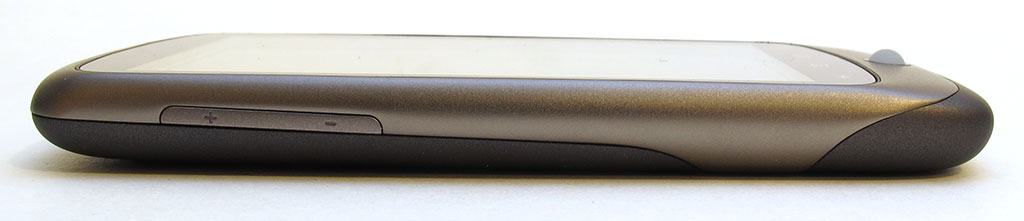
The volume rocker button is located on the Left side of the phone. This button has a low profile and weak tactile feedback, that makes it a bit difficult to locate blindly with your thumb during a phone call.
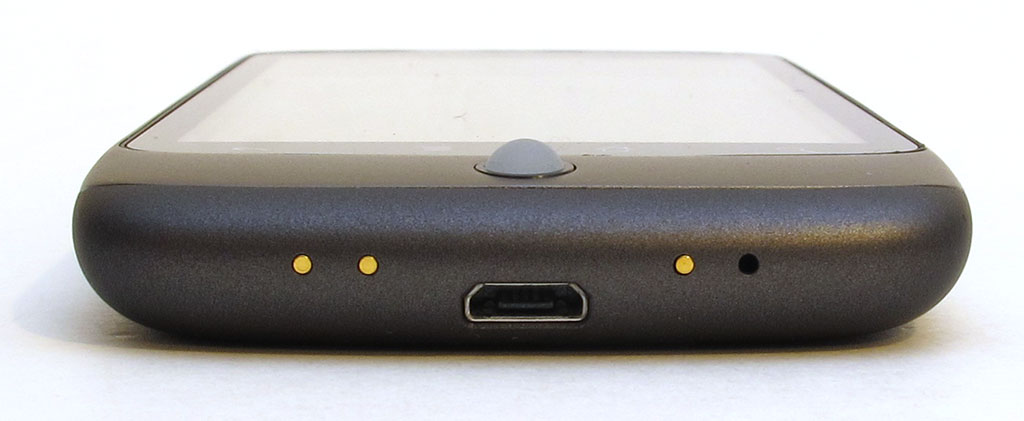
The bottom of the phone has a micro USB connector and electrical contacts for the optional desktop dock. The microphone is also located on the bottom. It’s the Black dot in the picture above. It’s interesting to note that the Nexus has an additional microphone that is located on the back of the phone.
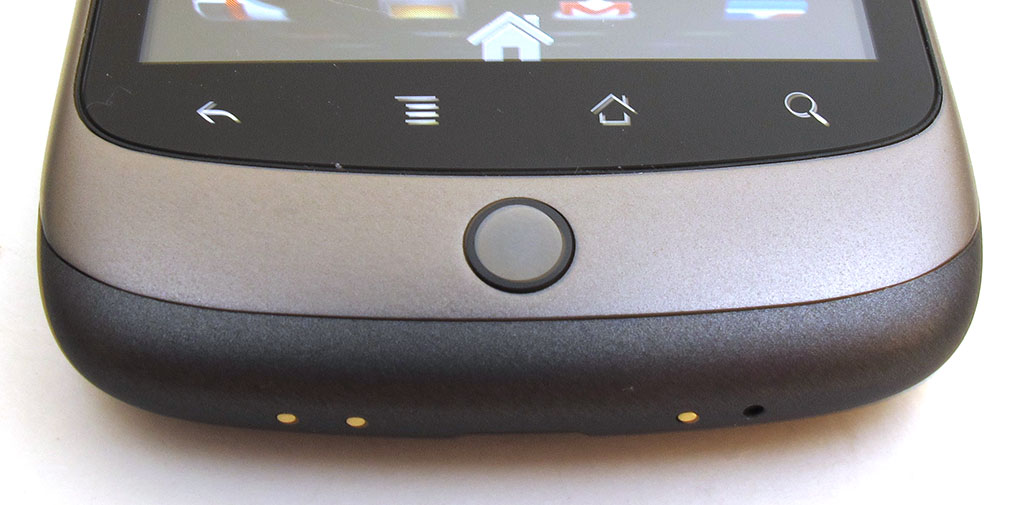
The clickable trackball can roll in any direction without stopping. It can also be pressed to select items. In addition, it is an LED that will pulse to let you know that you’ve received an email, text message, etc.
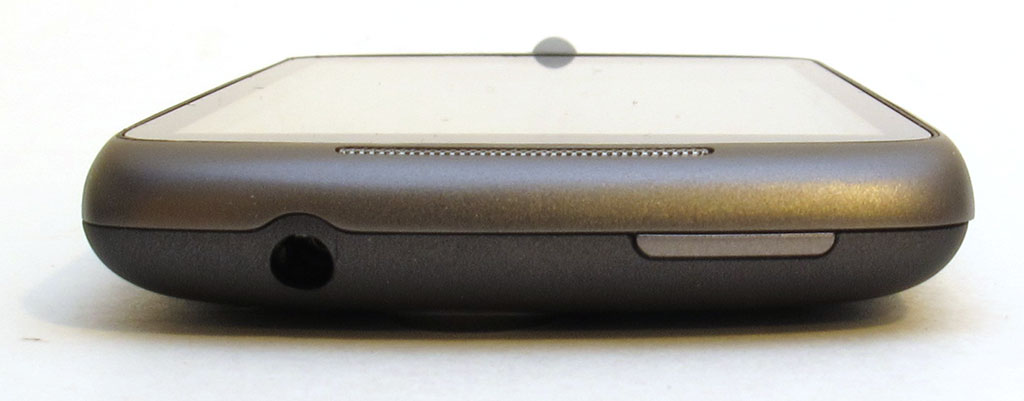
On the opposite end you’ll find a standard 3.5mm headphone jack and the power button.

I mentioned the desktop dock above… It’s a $45.00 optional purchase that is a nice accessory to have. It will let you easily charge the Nexus, which is no surprise, but the cool thing is that the Nexus will enter a special screensaver mode when it’s sitting in the dock.


First of all the Nexus just rests in the dock. You don’t have to plug it in like you do an iPhone. The dock has 3 contacts that press against duplicate contacts on the bottom of the phone. When you place the Nexus in the dock, it will turn on and display the image you see on the Left. The time and weather are displayed. You can use the Nexus as a clock and alarm clock in this mode. You can also play slide shows of the images stored on the phone and play music. The dock even has an audio-out connector and comes with a 3.5mm to RCA cable if you want to connect it to external speakers.
If you leave the phone in the clock / weather view, it will time out and switch to the clock view that you see on the Right. Nifty 
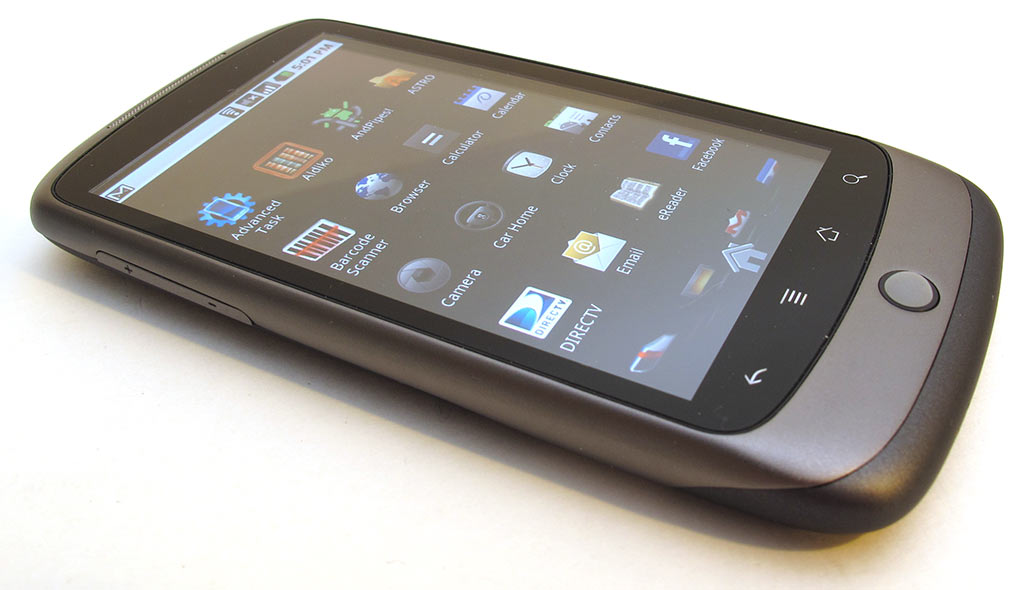
Let’s talk about the display. It’s a very nice one. It is physically larger than the iPhone’s display and has a higher resolution. But as far as the whole AMOLED thing, if I set the iPhone and Nexus side by side, the displays both look equally great to me.

The main difference I notice is that the N1’s Black’s are darker and the colors are more vibrant. But when I compare the sensitivity of the touch screen, I give the edge to the iPhone hands down. To me, the action of flicking, scrolling, swiping and tapping feels easier and more accurate on the iPhone. Regarding the strip of touch icons below the display, they don’t feel nearly as sensitive as the rest of the screen. I constantly find myself stabbing at them in frustration sometimes when they don’t want to recognize my taps. Then sometimes I can barely touch them to activate them. I’m hoping a firmware update can fix this issue.
The Camera
The Nexus One has an above average (for smartphones) 5 mp camera that has auto focus and a built in LED flash. It would have been nice if there was a dedicated camera launch / shutter button on the phone, but you can use the trackball to snap pix, or use the onscreen shutter button.
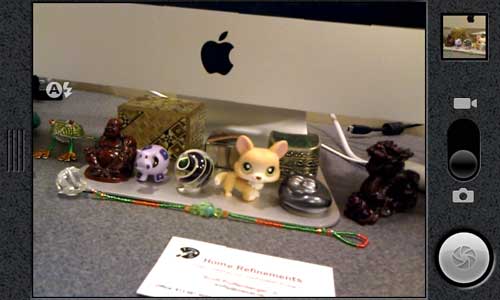

Here are a few sample pics:


Macro capability is very good. I wish you could tap the screen to focus on a specific spot though (like you can with the iPhone – sorry).
By default, using the phone’s AGPS receiver, the location where a photo was snapped will be saved along with the photo. Unfortunately I found that the accuracy of the location data was really bad. Sometimes more than a few miles off. Not sure what the deal is.
Video is recorded with the .3gp format, at 720×480 pixels at 20 frames per second.
Not sure why they didn’t go with mp4.
Phone Performance
I tested the Nexus on the AT&T network with 2G only. Yeah, yay me – not. AT&T call quality with the Nexus is just as crappy as call quality on all the other phones I test with the same network. I had my share of clicking, weird audio glitches, dropped calls, etc.
All that said, I had many good calls with good volume, clarity, etc too. So the bottom line is that I don’t know if the Nexus is any better or any worse than other GSM phone when it comes to using it as a phone.
Battery and Overall Performance
I haven’t been overly impressed with the battery life on the Nexus One. Even with 3G turned off, I am not able to get through more than 1-1.5 days without having to dock it for a recharge. This may should fine to most of you, but I don’t make many calls, don’t surf much and don’t watch video on the phone. My main activities are checking the time, reading a few emails, texting, browsing the marketplace for new apps and mostly reading eBooks with the FBreader app.
I did notice something really cool though… You can see what app or feature is using the most juice.

The About Phone option in the Settings app shows a scrollable list of things using battery life and the percentage used. Even more details can be found by clicking on the individual items. Nice touch!
System performance is snappy – as well it should be giving the 1GHz snap dragon processor that powers the Nexus. Apps launch very fast, scrolling lists is fast, going from app list to home screen is fast, it’s all fast. I have no complaints at all with performance.
The Software
So all in all, the Nexus One hardware is fantastic and I have few complaints. Now let’s get to the software. As most people will say, a device like a smart phone is only as good as the software that powers it. I’m a firm believer in that belief.
I’ve been very impressed with how much slicker Android 2.1 (Eclair) is over the original version of Android that I first played with on the G1. The difference is like night and day.
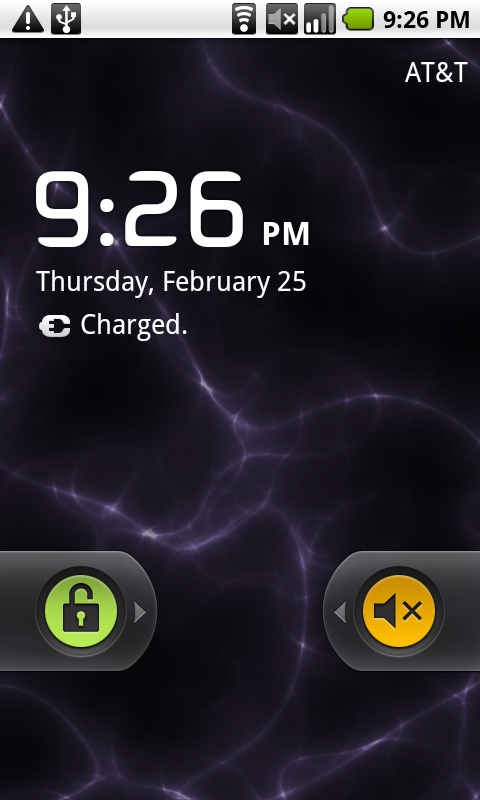
I appreciate the little details like the ability to turn the speaker on and off on the idle screen. Stuff like that make me happy.

But the #1 thing that makes me love Nexus One more than my iPhone is the ability to customize the 5 home screens. There are live wallapers like the one shown above, that animate and change depending on the time of day, widgets that give you instant access to important info like weather, news and upcoming appointments. You have the power to move widgets around, create a screen just of widgets or a screen with your favorite apps. The only thing you can’t do is have a different wallpaper for each of the 5 home screens. Seems odd that they left out that feature.

If the #1 thing I love about Android is the customization of the home screens, then the #1 thing I hate about Android is the quality of 3rd party apps. I felt the same way when I reviewed the G1 last year. Of course there are so many more apps available now than there were before. But, the overall quality of most apps still lags considerably behind apps for the iPhone. They just aren’t as polished. I’m not saying all apps are crummy… not at all. But when I went looking for comparable apps from my iPhone in the Android Marketplace, I came away disappointed. That said, with the surging popularity of Android, I’m very confident that this won’t be a problem for long.
While we’re talking apps, I have another complaint… The Nexus One only has 512MB of user storage for apps. Even though you can add a microSD flash card to the phone, you can not specify where apps are saved when you install them. This is a really big deal if you ask me. Yes, apps are small. But I haven’t installed all that many on my N1 and right now I only have 110mb free. Not good.
Unfortunately, my software related complaints aren’t confined to 3rd party apps. I found a few things that annoy me with the functionality of the stock apps. One biggie for me is that the built in Search app doesn’t search your google calendar items. Another is the lack of visual voicemail if you’re using the phone with AT&T. There’s also no notepad app to record quick text notes. No way to sync podcasts (I tried Google Listen, but it won’t let me sign in with my google for domains account).
Conclusion
Choosing between the Nexus One and iPhone is difficult for me because I really do love them both – for different reasons. I love the N1’s hardware. I love the size and feel in my hand, the display, microSD card and customization. But the touch screen and touch strip really frustrate me. I can actually learn to deal with the last two things, but when it comes down to it, I find myself missing the iPhone apps. For that reason, I’ll be putting my SIM back into the iPhone. I’ll be keeping my eye on the Android scene though. Heck, I may even root my N1 and install a home baked ROM. The Nexus One and Android definitely haven’t seen the last of me.
Subscribe to:
Posts (Atom)